EXIF · GPS
Where it was taken
Phones write exact GPS coordinates into every photo unless location is switched off. Removed by default.
Image metadata remover · free · in your browser
See the GPS, camera details and AI tags hidden in your photo, then strip them. Pixels untouched. Nothing uploaded.
Drop photos or images
or paste with ⌘V · up to 50 files at once
Processed in your browser. Files never leave your device.
01
A photo file carries more than pixels. This is what we look for — and what happens to each part by default.
EXIF · GPS
Phones write exact GPS coordinates into every photo unless location is switched off. Removed by default.
EXIF · Device
Camera make and model, lens, serial numbers and exposure. Kept by default — tick “Camera & device” to remove them too.
EXIF · Thumbnail
Many cameras and editors store a small preview inside the file. It can show the photo before you cropped or edited it. Always removed.
C2PA · XMP · PNG text
Content Credentials, IPTC DigitalSourceType and saved prompts that platforms and people can read. Removed by default.
02
In the Share sheet, tap Options and turn off Location to send a photo without GPS. Camera details, dates and any AI tags stay in the file.
Some gallery apps offer a “remove location” switch when you share. It is not always on, and it does not touch other metadata — check your app before you rely on it.
Apps that shrink photos before sending usually strip metadata as a side effect. AirDrop, email attachments and cloud links send the original file — with everything in it. If you need to be sure, clean the file first.
03
JPG, PNG, WebP, HEIC or AVIF — one photo or fifty. Nothing is uploaded.
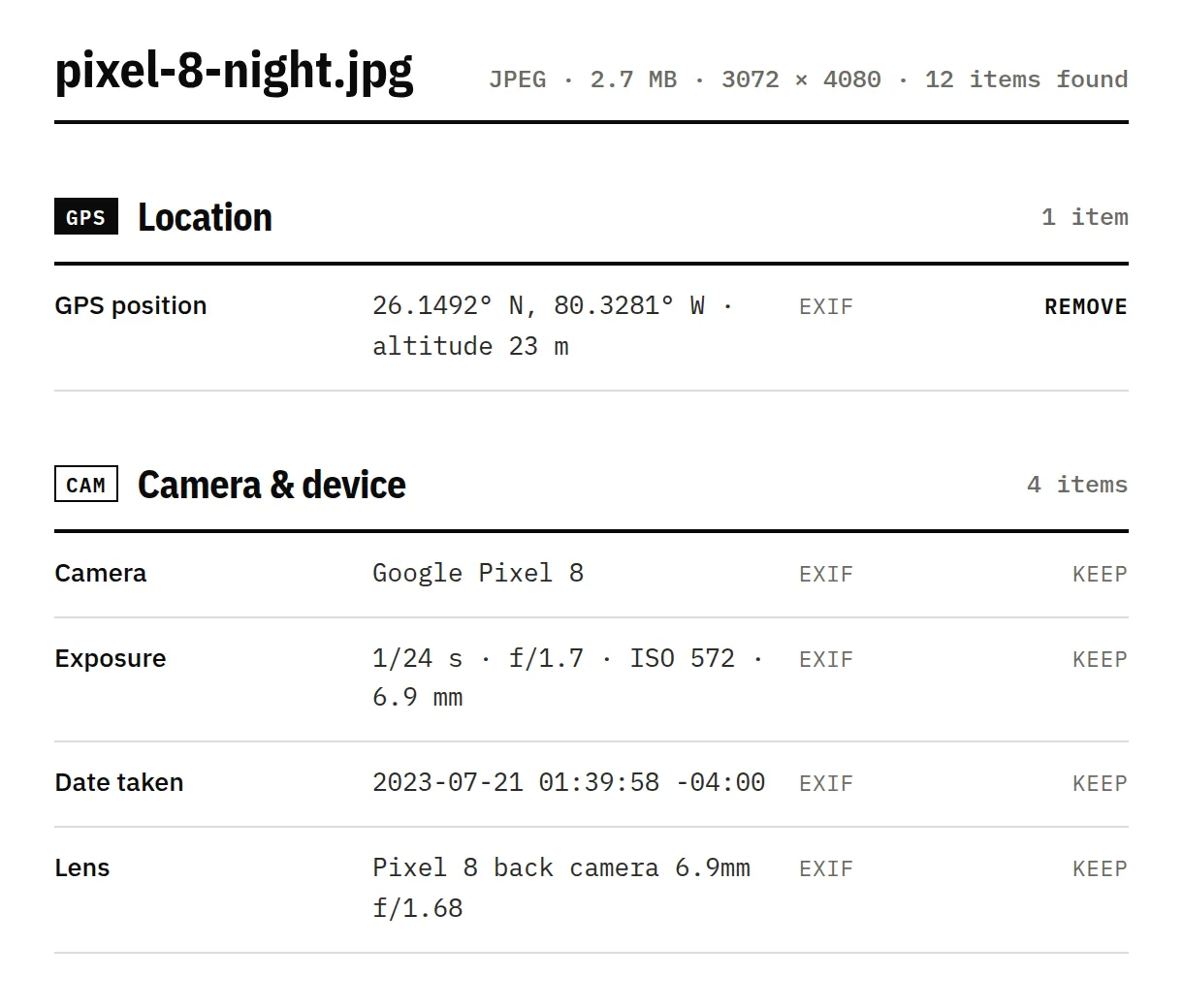
See every field, which ones are AI-related, and why a platform might label the file.
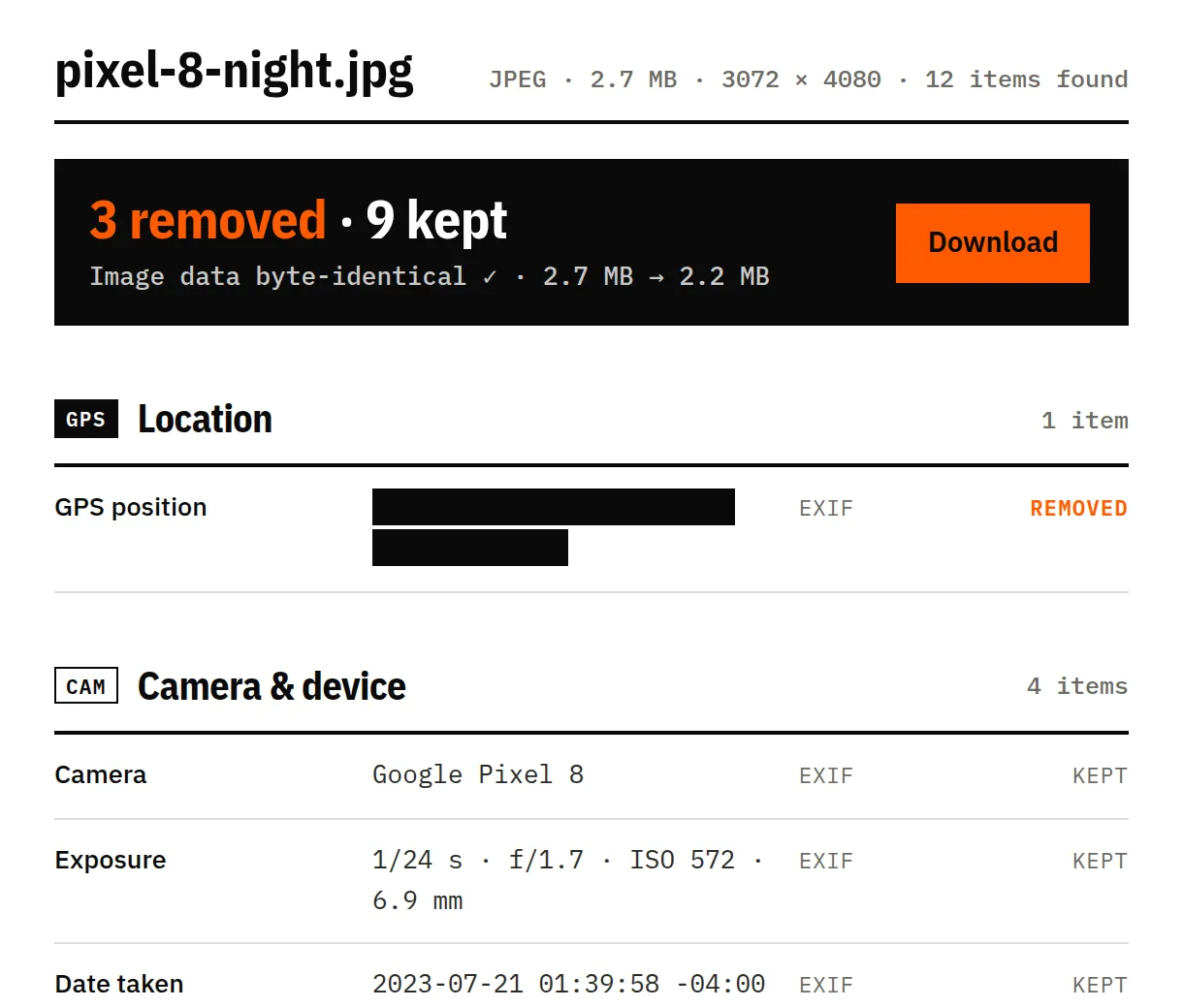
We re-check the result and confirm the image data is byte-identical.
04
An Ultra HDR photo straight from a Pixel 8. With the default options the location and the hidden extras go; the camera details and the HDR gain map stay.
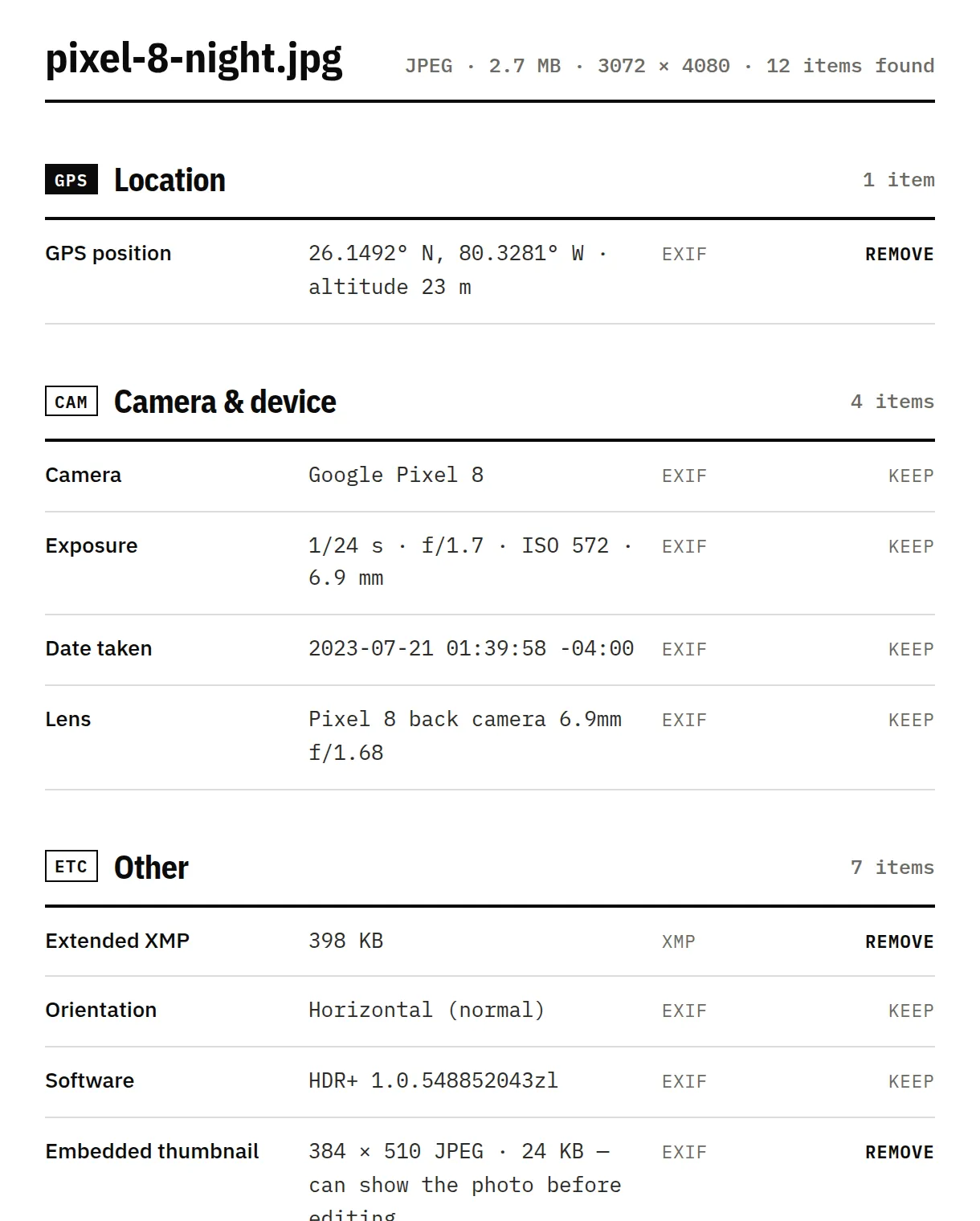
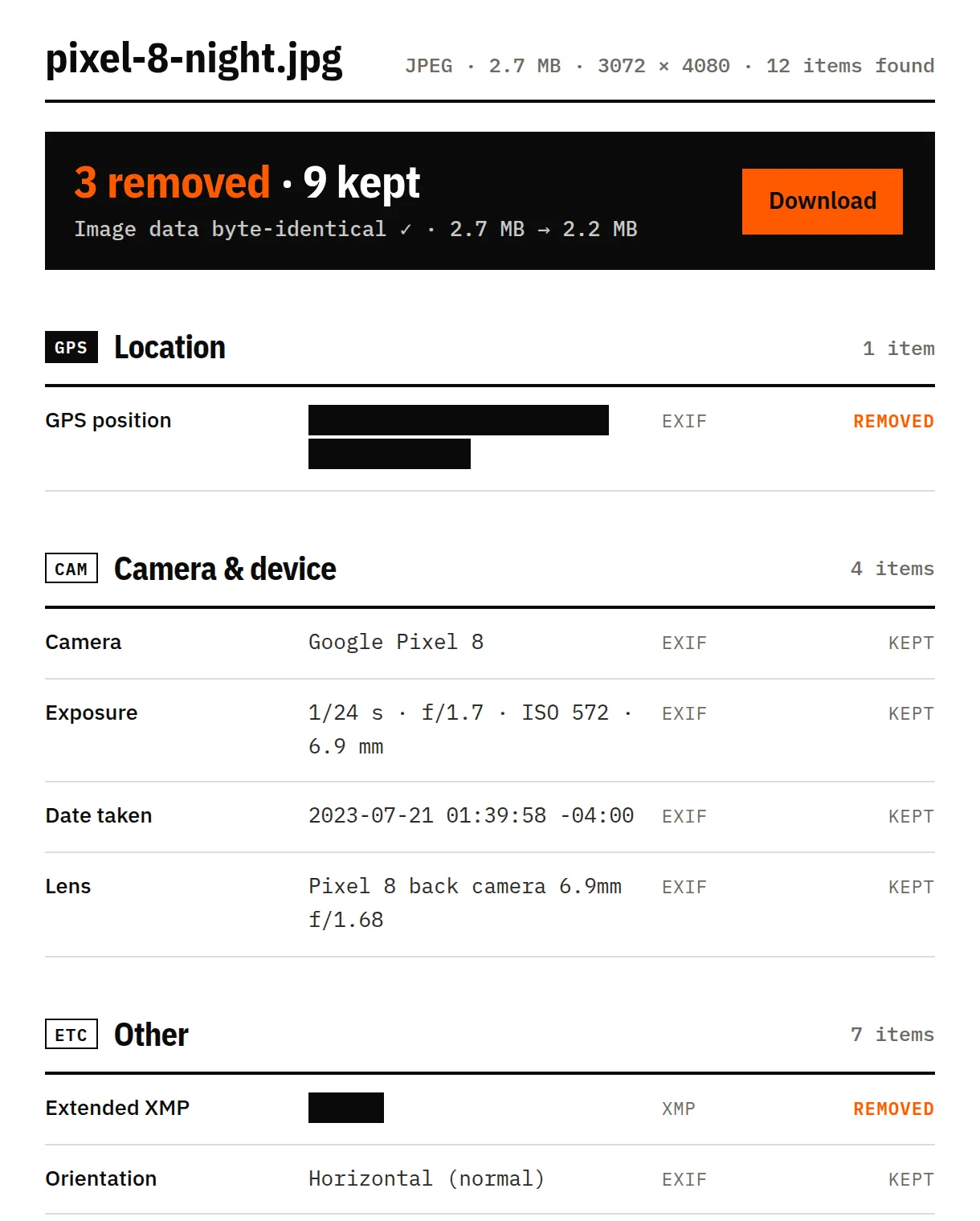
Sample: night_highrise.jpg from Android’s Ultra HDR samples (android/platform-samples, Apache-2.0). Screenshots of this tool, unretouched.
We clean what's written in the file. Some signals live somewhere else — and we'd rather tell you than oversell.
They're part of the picture. Removing them means editing pixels, which we never do.
Some AI tools hide a signal inside the pixels themselves. It survives metadata removal.
Instagram, TikTok and YouTube can also use their own models, so a clean file isn't a guarantee.
If an image is AI-generated, Instagram, TikTok and YouTube ask you to label it. Cleaning metadata doesn't change that.
Not all of it. In the Share sheet you can tap Options and turn off Location, which removes GPS. Camera details, dates and any AI tags stay in the file.
Drop the photo above and keep “Location” ticked. We remove the GPS coordinates and altitude, keep everything else you choose, and check the result before you download it.
Yes. We keep the color profile and the orientation flag, and we never re-encode the image, so it looks exactly the same.
EXIF holds camera settings, dates and GPS. XMP is a text block that editing apps use for descriptions, rights and AI tags. C2PA (Content Credentials) is a signed record of how the file was made or edited.
Last reviewed 17 November 2026, with real files from phones, cameras and AI tools · How we test